
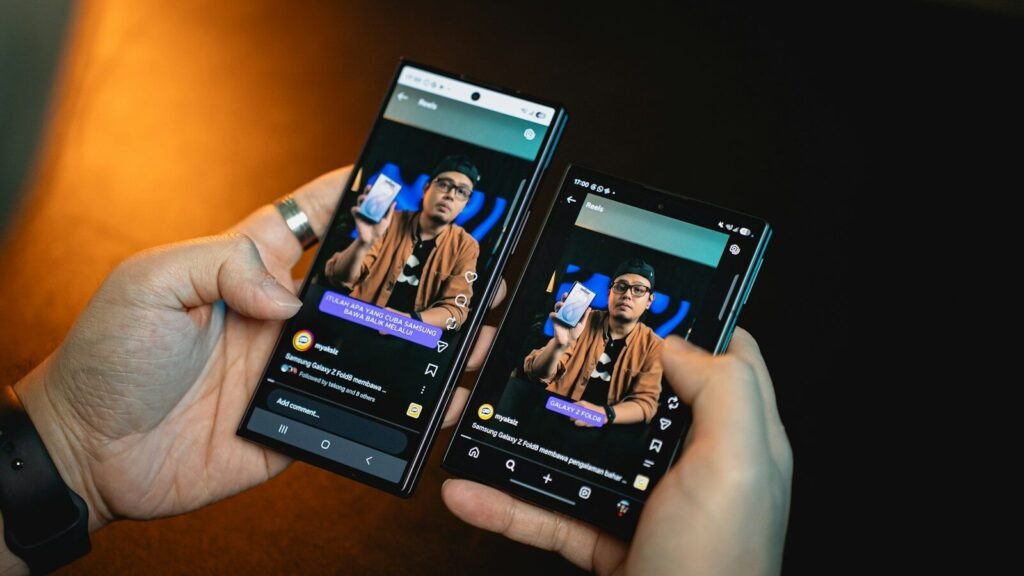
Getting a new phone is exciting — right up until you face the mountain of photos, apps, messages, and settings that need to move over. The good news: modern transfer tools are dramatically better than they were even a few years ago. Whether you are going Android to Android, iPhone to iPhone, or switching sides entirely, you can move nearly everything in under an hour with the built-in tools. This guide walks through each path step by step, plus the prep, the gotchas, and the post-transfer checklist most people skip.
Before You Start: Prep Both Phones
A smooth transfer begins before you tap anything. First, charge both phones to at least 50 percent, or plug them in — transfers can take a while and you do not want either phone dying mid-migration. Update the old phone to the latest available software version; mismatched OS versions are the most common cause of failed transfers. Finally, connect both phones to stable Wi-Fi and make sure the new phone has enough free storage for everything coming over.
Clear out the junk first
Do not pay to move digital clutter. Take ten minutes on the old phone to delete blurry screenshots, duplicate photos, and apps you have not opened in months. A smaller payload means a faster transfer and a cleaner start. Check your cloud photo backup too — if photos are already in the cloud, they do not need to ride along in the cable transfer.
Gather your credentials
Have your Google account (Android) or Apple ID (iPhone) email and password ready, plus access to your two-factor authentication method. You will also need the old phone’s screen lock PIN or pattern and, if you use one, your SIM PIN. Keep the old phone nearby and powered on through the whole process.
Android to Android: The Built-In Cable or Wireless Transfer
Moving between Android phones is the smoothest of all scenarios. When you first power on the new phone and connect to Wi-Fi, the setup wizard asks if you want to copy apps and data. Say yes, then choose how.
The cable method (fastest and most reliable)
If you have a USB-C to USB-C cable (or the right adapter), connect the two phones directly. The new phone detects the old one, asks you to verify with your Google account, and then lets you choose exactly what to copy: apps, photos, videos, contacts, messages, call history, device settings, and more. Cable transfers are the fastest option and do not depend on your Wi-Fi speed — use this method when you have a lot of photos or videos.
The wireless method
No cable? No problem. Place the phones close together and the setup wizard will offer a wireless transfer over a direct phone-to-phone connection. It is slower than cable but moves the same categories of data. Both methods can take anywhere from ten minutes to over an hour depending on how much you are moving — start the process when you do not need either phone.
iPhone to iPhone: Quick Start and iCloud
Apple’s Quick Start is famously easy, and it works well. Power on the new iPhone and place it near the old one with Bluetooth on. A setup prompt appears on the old phone; confirm your Apple ID, scan the animation with the old phone’s camera, and follow the prompts.
Direct device-to-device transfer
Quick Start gives you the option to transfer directly from the old iPhone. This is the best choice when you want an exact clone — apps, settings, messages, photos, and even your Apple Watch pairing transfer over. Keep both phones close together and on power. Most transfers complete within 30 to 60 minutes, depending on data size.
iCloud restore (no old phone needed)
If your old iPhone is lost, broken, or already wiped, an iCloud backup is your fallback. During new iPhone setup, choose Restore from iCloud Backup and sign in with your Apple ID. The catch: the free iCloud tier only includes 5 GB, which is rarely enough for a full phone. If you plan to rely on iCloud, consider paying for extra storage for one month — it is a small cost for a complete restore — or use the direct transfer method instead.
Android to iPhone: Move to iOS
Apple’s free Move to iOS app handles the Android-to-iPhone migration. Install it on your Android phone from the Play Store, then start setting up the new iPhone. On the Apps and Data screen, choose Move Data from Android. A temporary Wi-Fi network is created between the phones, and you enter a one-time code shown on the iPhone into the Android app.
What actually transfers
Move to iOS moves contacts, message history, camera photos and videos, web bookmarks, mail accounts, calendars, and free apps that exist on both platforms. Paid apps do not carry over — you will need to buy them again in the App Store — and some Android-specific data like system settings and certain app data stays behind. Music and files stored outside standard locations may need manual copying.
Tips for a clean switch
Turn off mobile data on the Android phone during the transfer so the Wi-Fi link stays stable, and disable any battery-saver modes that might put the app to sleep. If the transfer stalls, restart both phones and try again — this resolves most Move to iOS hiccups. Once finished, verify your contacts and photos before wiping the Android phone.
iPhone to Android: Switching Platforms
Going the other direction is just as supported. On most Android phones, the setup wizard includes a switch option; Google also offers the Switch to Android app on the App Store for iPhones. The process mirrors the reverse journey: connect the phones with a cable or use the wireless option, sign in with your Google account, and choose what to copy.
Google’s Switch to Android app
The app moves contacts, photos, videos, messages, and many apps from iPhone to Android over a direct connection. Like Move to iOS, it works best during the new phone’s initial setup. Apps that exist on both stores transfer as download links; Apple-only apps obviously do not exist on Android, so make a list of your must-have iOS apps and find their Android equivalents in advance.
What to know about iMessage
The single most important step when leaving iPhone: deregister iMessage before you remove your SIM from the old iPhone. Go to Settings, Messages, and turn iMessage off. If you skip this, texts from iPhone friends may keep routing to iMessage and never reach your new Android phone. Apple also offers a web deregistration tool if you no longer have the old iPhone.
What About WhatsApp and Chat History?
WhatsApp chats deserve special attention because they are tied to your phone number and platform. WhatsApp’s built-in chat transfer feature moves your full history — including media — between phones of the same platform during setup, and cross-platform transfers (Android to iPhone and vice versa) are now supported through the app’s Move chats function. Make sure both phones are on the latest WhatsApp version, keep the app open during the transfer, and do not delete WhatsApp from the old phone until you confirm the history arrived. For other messaging apps like Telegram and Signal, chats live in the cloud or use their own transfer tools — check each app’s settings before wiping the old phone.
After the Transfer: The Checklist
Do not wipe the old phone the moment the transfer finishes. Spend a day or two with the new phone first, and work through this checklist.
Verify everything arrived
Open your photos app and check that recent pictures and albums are all there. Scan your contacts list, confirm text conversations loaded, and open your most-used apps to make sure you are signed in and your data synced. Test payments (mobile wallet), authenticator apps, and banking apps individually — these often need re-verification for security reasons. If you use a password manager, confirm it unlocked correctly on the new phone.
Set up the new-phone essentials
Re-enable your screen lock and biometrics, check that automatic cloud backups are turned on for the new phone, and reconnect Bluetooth accessories like earbuds and smartwatches. If you moved your SIM or eSIM, make a test call and send a text to confirm everything works. Update any apps that show pending updates, since transfers sometimes install slightly older versions.
Then retire the old phone safely
Once you are confident everything is on the new phone and backed up, sign out of your Google or Apple account on the old phone, remove it from your account’s device list online, and perform a factory reset. A reset wipes your personal data so the old phone is safe to sell, trade in, or hand down. Do not skip the sign-out step — on iPhones, failing to sign out of your Apple ID can leave Activation Lock on, making the phone unusable for the next owner.
Troubleshooting Common Problems
If a transfer stalls or fails, the fix is usually simple. First, restart both phones and make sure they are on the same Wi-Fi network (or connected by cable) with plenty of battery. Turn off VPNs, which can block the direct connection between phones. If the setup wizard already passed the transfer screen, you can usually reset the new phone and start setup again — nothing is lost because the old phone still holds everything. For stubborn cases, transfer in smaller chunks: move photos separately via cloud backup and let the built-in tool handle apps and settings. If a specific app’s data will not transfer, check whether it has its own cloud sync or export feature.
Frequently Asked Questions
How long does a phone transfer take?
Anywhere from 10 minutes to a couple of hours. The deciding factor is how much data you are moving — a phone with 100 GB of photos takes far longer than a lightly used one. Cable transfers are fastest; wireless and cloud restores depend on your internet speed.
Can I use my new phone during the transfer?
Mostly no — the setup wizard needs both phones focused on the task. Start the transfer when you have an hour free, ideally while the phones sit on chargers nearby. After the initial migration, cloud restores continue in the background while you use the phone.
Do I need to back up before transferring?
It is strongly recommended. A fresh cloud or computer backup of the old phone protects you if anything goes wrong mid-transfer. The built-in tools are reliable, but a backup is cheap insurance.
Will my apps transfer with their logins?
Apps themselves transfer, but logins often do not — expect to sign back in to banking, email, and social apps on the new phone. A password manager makes this painless. Two-factor authentication apps usually need manual re-setup, so keep the old phone until your authenticator is working on the new one.
Can I transfer between phones of different brands?
Yes. Android-to-Android transfers work across brands (Samsung to Pixel, for example) using the standard Android setup flow, though some manufacturers add their own extra tools. iPhone to any Android phone works with Google’s Switch to Android app.
What if my old phone is broken or will not turn on?
Then you rely on your most recent cloud backup — iCloud for iPhone, Google One for Android — restored during the new phone’s setup. This is why keeping automatic backups on matters long before you upgrade. If there was no backup, data on a dead phone may only be recoverable by a repair shop.
Do text messages transfer?
Yes on same-platform transfers (Android to Android via Google backup, iPhone to iPhone via Quick Start or iCloud). Cross-platform message transfer is limited: Move to iOS moves Android message history to iPhone, but iPhone-to-Android message history only transfers through the dedicated switch tools — plain SMS forwarding is not automatic.
The Bottom Line
Moving to a new phone in 2026 is mostly a matter of following the setup wizard and being patient. Prep both phones, use a cable when you can, give WhatsApp and authenticator apps special attention, verify everything before wiping the old phone, and deregister iMessage if you are leaving Apple. Do it in that order and your new phone will feel like home within a day — minus the clutter you finally deleted.