
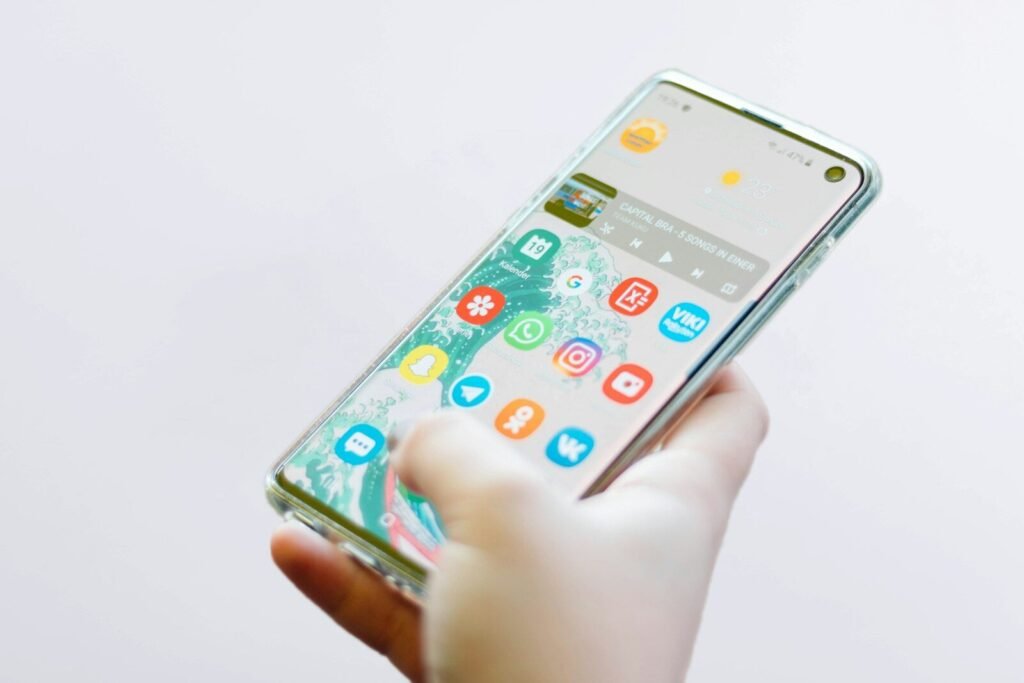
Storage full is the notification nobody wants to see — usually right when you are trying to take a photo, download an app, or install an update. The good news: most full phones are not full of memories. They are full of cached files, duplicate downloads, forgotten apps, and videos that could live in the cloud. This guide shows you how to reclaim gigabytes without deleting a single photo you care about.
Why Phones Fill Up So Fast
Phone storage disappears for a simple reason: everything got bigger while your storage stayed the same. Photos are higher resolution than ever, videos default to 4K, messaging apps auto-save every photo and clip anyone sends you, and apps themselves have ballooned as developers assume storage is plentiful. A phone that felt roomy two years ago can feel cramped today without you changing a single habit.
The mismatch is what makes this fixable. The things filling your phone are mostly not the things you value — they are copies, caches, and clutter the system accumulated on your behalf. Once you see where the space actually went, clearing it is straightforward, and a few changed settings keep it from coming back.
First, See What Is Eating Your Storage
Before deleting anything, look at the breakdown. On iPhone, open Settings, then General, then iPhone Storage — you will see a colored bar and a list of apps by size. On Android, open Settings, then Storage, for a similar breakdown. This tells you whether the culprit is photos, apps, system data, or cached files, so you attack the right target instead of guessing.
The usual suspects
Photos and videos are typically the largest category, followed by messaging apps (which silently accumulate years of shared photos and videos), downloaded media, and app caches. System data that you cannot touch directly often shrinks once you clear the caches feeding it. Knowing the split turns a vague panic into a plan.
Sort by size, not by guilt
Work from the biggest categories down. Clearing a gigabyte of cached video from one streaming app beats deleting fifty small apps you might miss. The storage screen already ranks everything for you — trust it and start at the top.
Move Photos to the Cloud, Keep Them on Your Phone (Smaller)
Your photo library is precious — so do not delete it. Instead, let the cloud hold the full-resolution originals while your phone keeps lightweight versions.
iPhone: Optimize iPhone Storage
Turn on iCloud Photos in Settings, then choose Optimize iPhone Storage. Your phone replaces full-resolution originals with small previews, downloading the real file only when you open it. The library looks identical, every photo is still there, and you can recover many gigabytes in minutes — once the originals finish uploading, which takes a while on the first run.
Android: Google Photos backup
Open Google Photos, turn on Backup, and wait for everything to upload. Then use the Free Up Space option, which removes from your phone every photo and video that is safely backed up. Your memories stay in the cloud, searchable and shareable, while your phone breathes again. Double-check that the backup is complete before you free up space — look for the backup-complete indicator, not just hope.
What about videos?
Videos are the real space hogs — a few minutes of 4K footage can outweigh thousands of photos. They are also the files you rewatch least. Cloud backup handles them the same way, and for the future, consider recording everyday clips at a lower resolution while reserving the highest quality for things you will actually keep and edit.
Clear the Caches and Junk You Do Not Need
Apps accumulate temporary files — cached images, offline content, old downloads — that can quietly grow into gigabytes.
Messaging apps: the hidden hoarders
Open your most-used messaging apps and look at their storage usage in their settings. Years of shared photos, videos, voice notes, and GIFs pile up in every chat. Most apps let you clear cached media without deleting the chats themselves — review large files per conversation and remove the ones you do not need. Your conversations stay; the 47 forwarded videos go.
Streaming apps and offline downloads
Downloaded episodes, playlists, and offline maps are wonderful until you forget them. Open each streaming and music app and delete downloads you have already watched or listened to — you can re-download them anytime. Offline maps for trips you finished months ago are pure dead weight.
Browser and social app caches
Social and browser apps cache enormous amounts of images and video. Clearing an app’s cache (Android lets you do this per app in Settings; on iPhone, offloading and reinstalling the app achieves the same) frees space without touching your account, posts, or messages. You will just need to sign in again in some cases.
Deal With Apps You Forgot You Had
Go back to that storage-by-app list and look at the bottom: apps you have not opened in months. On iPhone, enable Offload Unused Apps, which removes the app but keeps its data and documents — reinstalling later restores everything. On Android, unused apps can simply be uninstalled; your account data lives in the cloud. Be honest about the games you finished and the tools you tried once.
Check for duplicate and lite alternatives
Some people carry two or three apps that do the same job — two note apps, three photo editors. Pick one. And for heavy social apps you barely use, the mobile website in your browser often works fine and costs zero storage.
Stop the Leak: Settings That Keep Storage Free
Freeing space once is good; stopping it from filling again is better.
Review what auto-downloads
Messaging apps often auto-save every incoming photo and video to your camera roll — turn that off and save only what you want. Review auto-download settings for media quality too; you rarely need full-resolution copies of casual shares.
Manage screenshots and screen recordings
Screenshots multiply silently — boarding passes, memes, things to read later. Once a month, sweep through them: save the few keepers to a note or album, delete the rest. The same goes for screen recordings, which are enormous and almost never rewatched.
Keep the OS and apps updated
Updates sometimes shrink the system’s footprint, and newer OS versions include better storage management tools. Do not let update files sit downloaded-but-uninstalled either — install them or delete the download.
The Bottom Line
Check the storage breakdown, move full-resolution photos and videos to the cloud with optimized local copies, clear messaging and streaming caches, offload forgotten apps, and turn off auto-downloads. Follow that sequence and most phones recover a large chunk of space in under an hour — with every memory intact.
Frequently Asked Questions
Will optimizing photo storage delete any of my pictures?
No — optimization moves full-resolution originals to the cloud and keeps smaller versions on your phone. Every photo remains visible and searchable, and opening one downloads the full version. Nothing is deleted unless you delete it yourself.
What is the difference between offloading and deleting an app?
Offloading removes the app itself but keeps its data and documents, so reinstalling restores everything as it was. Deleting removes the app and its local data. Offload the apps you might return to; delete the ones you are done with.
Why does System or Other take up so much space?
That category includes caches, logs, and temporary files from the OS and apps. It often shrinks on its own after you clear app caches, restart the phone, and install pending updates. If it stays stubbornly huge, a backup followed by a fresh OS install resets it — a last resort, not a first step.
Is it safe to clear an app’s cache?
Yes. Cache is temporary data the app can rebuild — thumbnails, preloaded content, old temp files. Clearing it does not delete your account, settings, or saved content. The app may load a little slower the first time after, while it rebuilds what it needs.
How much free space should I try to keep?
Aim to keep roughly ten percent of your storage free. Phones need breathing room for updates, new photos, and temporary files — running at 99 percent full makes everything slower and blocks updates entirely. Set a monthly reminder to do a quick sweep.
Do I need a storage-cleaner app?
Usually not. The built-in storage screens on iPhone and Android already show what is using space and offer the same cleanup actions. Third-party cleaners rarely do anything the system cannot, and some come with ads or subscriptions you do not need.