
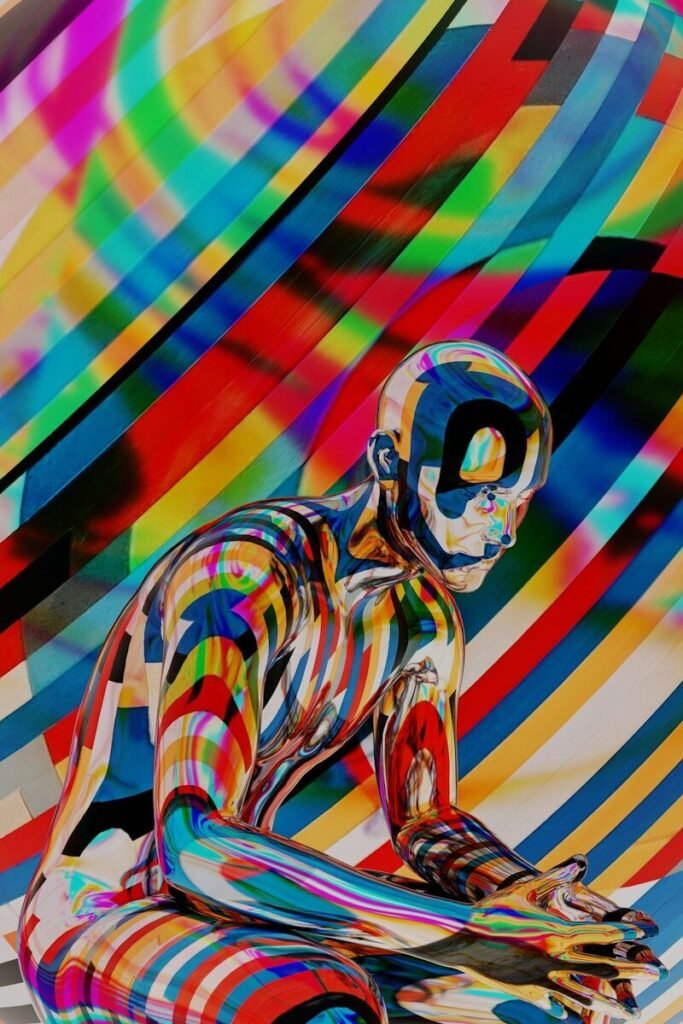
Type a sentence, get a picture. AI image generators have turned that simple idea into one of the most exciting creative tools of the decade. But between Midjourney, DALL-E, and a growing crowd of free alternatives, which one should you actually use? This guide explains how these tools work, compares the big names honestly, and shows you where to start for free.
How AI Image Generators Actually Work
Modern image generators learn from enormous collections of images and their descriptions. When you type a prompt, the AI does not search for a matching picture — it builds a new one, predicting what pixels should look like based on patterns it learned. That is why results can be stunning, strange, or occasionally hilarious, especially with hands, text, and complicated scenes.
The key skill is prompting: describing what you want clearly. A good prompt names the subject, the style, the mood, and the details that matter: “a watercolor painting of a lighthouse at sunset, waves crashing, soft pastel colors, no people.” You will get better results from a specific prompt than from any upgrade.
Midjourney: The Artist’s Favorite
Midjourney is widely loved for its beautiful, artistic output — moody portraits, cinematic landscapes, and striking concept art. It runs through Discord (and now a web app), which feels unusual at first but creates a lively community where you can watch others’ prompts and learn from them.
Strengths: consistently gorgeous results, strong community, fast iteration. Trade-offs: it is a paid service with no permanent free tier, and the Discord-based workflow is not everyone’s cup of tea. It is the best choice if image quality is your top priority and you create visuals regularly.
DALL-E: The All-Rounder Inside ChatGPT
DALL-E, developed by OpenAI, is integrated into ChatGPT, which makes it the most convenient option for many people. You describe what you want in plain conversation, and it generates the image — then you can ask for changes in natural language: “make it warmer,” “add a cat,” “try a cartoon style.”
Strengths: easiest to use, great at following detailed instructions, conversational editing. Trade-offs: full access requires a paid ChatGPT plan, and the style can feel a bit safe compared with Midjourney’s drama. It is ideal if you already use ChatGPT and want image generation without learning a new tool.
Free Alternatives Worth Trying
You do not need to pay to experiment. Several capable free options exist:
- Microsoft Designer / Image Creator: powered by DALL-E technology, free with a Microsoft account, and surprisingly good for everyday graphics and social posts.
- Adobe Firefly: free tier available, trained on licensed content (which matters for commercial use), and excellent integration with Photoshop and other Adobe tools.
- Stable Diffusion: open-source and free to run, including on your own computer if it is powerful enough. The most flexible option, with a learning curve to match.
- Ideogram and others: newer free tools that handle text inside images better than most — handy for logos, posters, and memes.
Free tiers usually limit how many images you can generate per day or month. For casual use — blog headers, social posts, brainstorming visuals — that is plenty.
Head-to-Head: Which Should You Pick?
- Best overall quality: Midjourney, especially for art, photography-style images, and atmosphere.
- Easiest to use: DALL-E inside ChatGPT — just chat.
- Best free option: Microsoft’s Image Creator or Adobe Firefly’s free tier, depending on whether you need commercial-use comfort.
- Most control and privacy: Stable Diffusion run locally — your prompts and images never leave your machine.
- Best for text in images: newer models like Ideogram; traditional generators still garble words.
Writing Prompts That Work
Good prompting is a learnable skill. Use this formula: subject + style + details + mood + technical notes. Compare “a dog” with “a golden retriever puppy sleeping in a sunbeam, cozy living room, warm photorealistic style, shallow depth of field.” The second prompt gives the AI everything it needs.
Other tips: name art styles you like (“oil painting,” “flat vector illustration,” “1980s poster”), specify what to avoid (“no text, no watermark”), and iterate — generate, pick the best, and refine the prompt. Save prompts that work; they are reusable recipes.
Beyond Text-to-Image: Features Worth Knowing
Modern generators do much more than turn sentences into pictures. Image-to-image lets you upload a rough sketch or photo and ask the AI to restyle it — great for turning a quick doodle of a logo into a polished concept. Inpainting lets you select part of an image and regenerate just that area: remove a photobomber, change a shirt’s color, or replace a dull sky.
Outpainting extends an image beyond its borders, handy when your perfect shot has the wrong aspect ratio for a banner. Upscalers enlarge small generations into print-quality files. And many tools now offer style references: upload an image whose look you love, and the AI applies that aesthetic to new generations — the fastest route to a consistent visual brand.
You do not need all of these on day one, but knowing they exist saves you from redoing work. When a generation is 90 percent perfect, edit that last 10 percent with inpainting instead of starting over.
Copyright, Ethics, and Honest Use
The rules around AI images are still evolving, and they differ by country. Practical guidance: check each tool’s terms for commercial use before selling anything you generate. Do not generate images of real, recognizable people without permission. And be transparent — if an image illustrates a news story or a product, say it is AI-generated. Trust is hard to win back once lost.
Also worth knowing: most generators refuse certain requests (violence, explicit content, impersonation), and watermarks or metadata sometimes identify AI images. These guardrails are imperfect but improving.
Practical Uses for Everyday People
- Bloggers and creators: unique header images and illustrations without stock-photo sameness.
- Small businesses: social posts, sale graphics, and mockups for products that do not exist yet.
- Teachers and parents: custom illustrations for lessons, stories, and worksheets.
- Brainstorming: visualize a room redesign, a logo direction, or a story scene before committing.
Your First AI Image: A 10-Minute Starter Plan
- Pick a free tool. Sign in to Microsoft’s Image Creator or Adobe Firefly with an account you already have.
- Write one clear prompt. Use the formula above: subject, style, details, mood. Aim for two or three sentences.
- Generate four variations. Most tools produce several at once. Pick the strongest, not the first.
- Refine once. Adjust one thing — the style, the lighting, the background — and regenerate.
- Download and use it. Put it in a blog post, a presentation, or a social graphic. Done is better than perfect.
That first session teaches you more than any tutorial: you will see how the tool interprets words, where it shines, and where it needs clearer direction.
Common Frustrations (and Fixes)
Weird hands and faces: still the classic problem. Fix: request scenes without close-up people, or generate at higher quality settings.
Text comes out garbled: most models struggle with words in images. Fix: use a tool known for text handling, keep text short, or add text afterward in a design app.
Results ignore your prompt: Fix: simplify — one clear idea per prompt beats five ideas crammed together. Then add details back gradually.
The Bottom Line
Midjourney wins on beauty, DALL-E wins on convenience, and the free alternatives are good enough for most everyday needs. Start free, learn prompting, and only pay when you consistently hit a free plan’s limits. The skill that matters most is not which button you press — it is describing what you imagine clearly enough for the machine to see it.
Frequently Asked Questions
Can I use AI-generated images commercially?
It depends on the tool and its terms of service — many allow commercial use of images you generate, especially on paid plans. Adobe Firefly is notable for training on licensed content, which reduces risk. Always check the current terms before selling or advertising with AI images.
Which free AI image generator is best?
For most people, Microsoft’s Image Creator (free with a Microsoft account) or Adobe Firefly’s free tier. Both produce good everyday graphics. If you want maximum control and have a capable computer, open-source Stable Diffusion is free and unlimited.
Why do AI images look wrong sometimes?
The AI predicts pixels from patterns rather than understanding the world, so it can fumble anatomy, text, and logic (extra fingers, misspelled words, impossible architecture). Clearer prompts, simpler scenes, and newer models all reduce these glitches.
Do I own the images I generate?
Ownership rules vary by tool and jurisdiction and are still being tested in courts. Most services grant you broad rights to use what you generate, but read the terms of the specific tool you use — especially for commercial work.